
What is a payment request and how to create one
A payment request is a manually created crypto invoice that can be generated directly from the Sheepy dashboard without API integration. It can be sent to a customer through a payment link or email, allowing businesses to request cryptocurrency payments without building a custom checkout flow.
Customers can pay using supported cryptocurrencies, while merchants can track payments and manage invoice statuses from the Sheepy dashboard. Payment requests allow merchants to create invoices manually, configure payment settings, and share payment links directly with customers.
Payment requests page
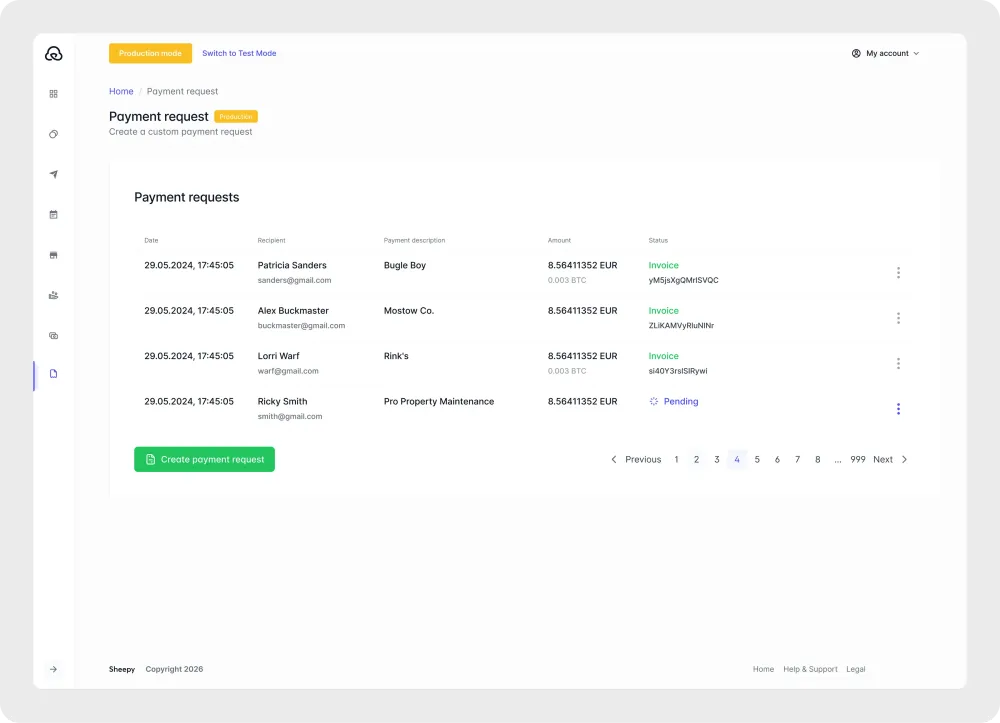
The Payment request page allows merchants to create, manage, and monitor payment requests from a single location in the Sheepy dashboard.
The page displays a list of all payment requests, including recipient information, payment descriptions, invoice amounts, and current statuses. Merchants can use this section to review active requests, track completed payments, and identify expired invoices.
To create a new payment request, click the Create payment request button at the bottom of the page.
How to create a payment request
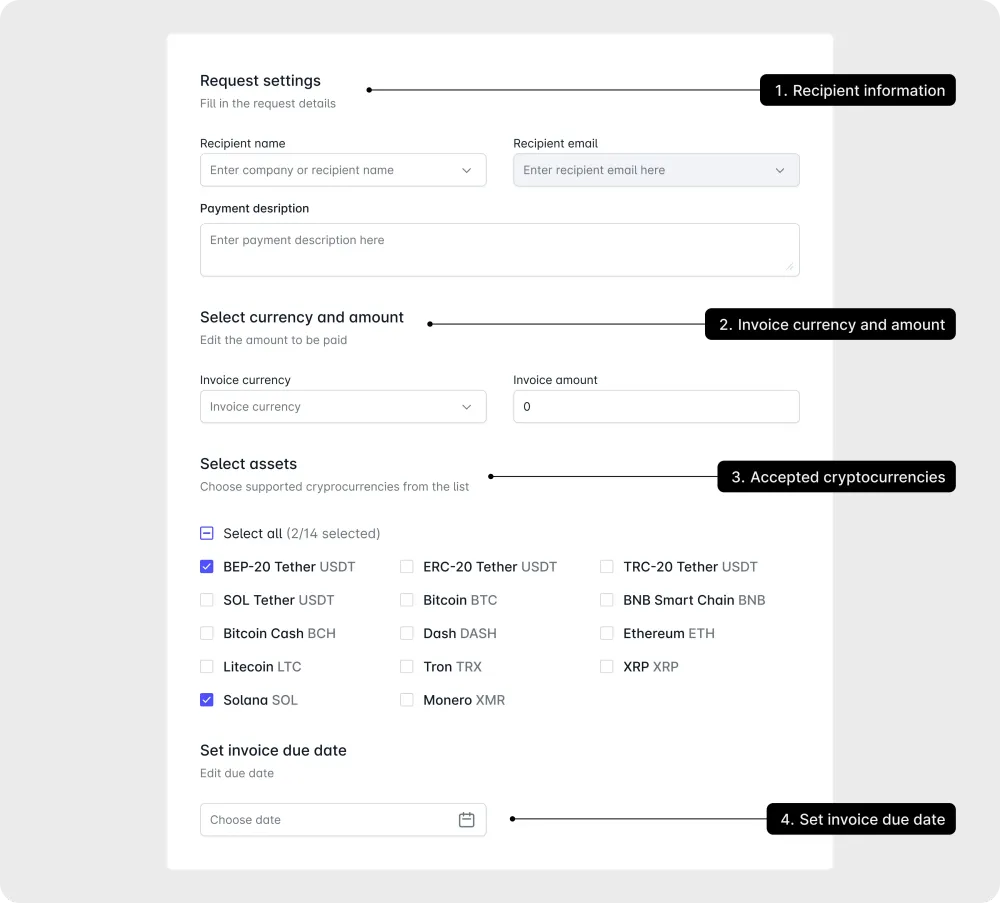
Step 1. Enter recipient information
Enter the recipient’s name and email address, then add a payment description to provide additional details about the invoice.
Step 2. Define the invoice amount
Select the invoice currency and enter the amount to be paid. Payment requests can be created in supported fiat or cryptocurrency denominations, allowing merchants to invoice customers in their preferred billing currency while still accepting cryptocurrency payments.
Step 3. Select accepted cryptocurrencies
Supported cryptocurrencies and networks can be selected for the payment request. A single payment request can support multiple cryptocurrencies, giving customers the flexibility to choose their preferred payment method.
Step 4. Set the invoice due date
Set the date by which the customer should complete the payment. The due date defines how long the payment request remains valid and helps merchants manage payment deadlines. Customers can complete the payment at any time before the selected date.
Payment request settings
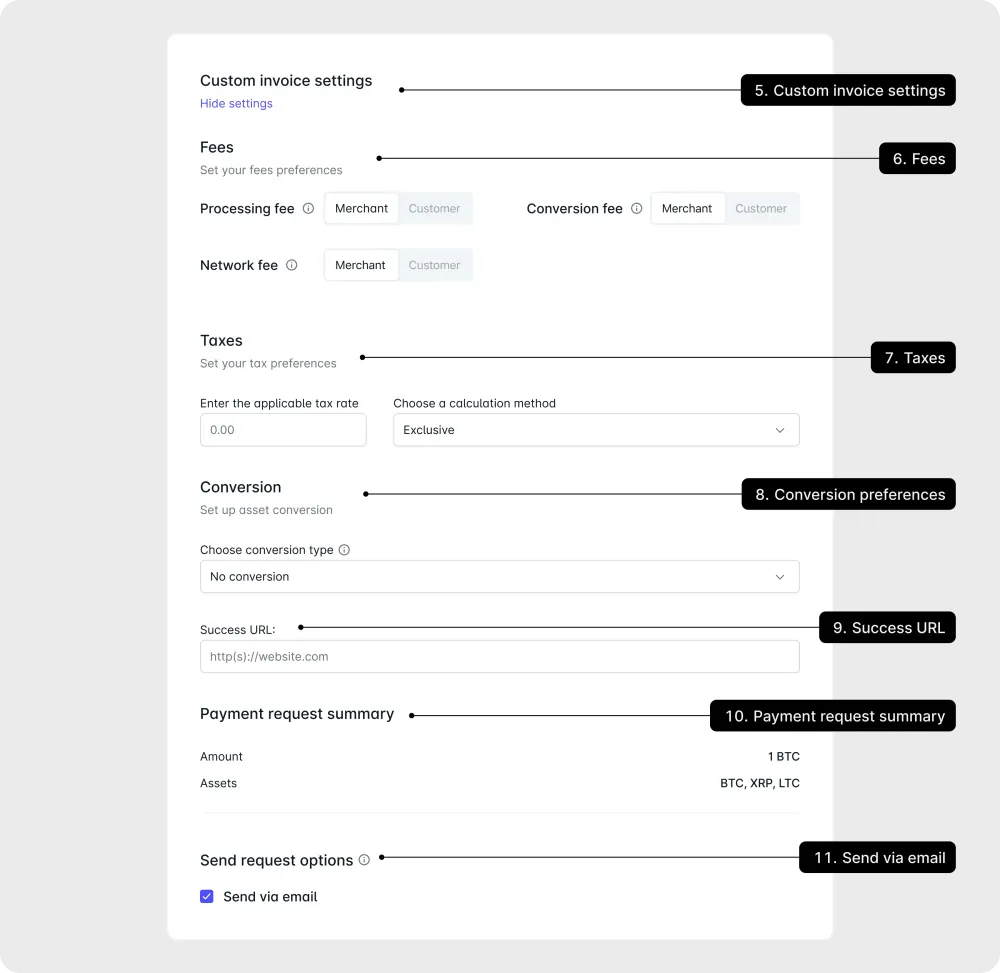
Payment requests include several configuration options that allow merchants to customize how invoices are processed and how payment information is presented to customers.
Step 5. Configure additional settings
Additional settings such as fees, taxes, conversion preferences, success URLs, and email delivery options can be configured before the payment request is created. Once all details have been reviewed, the payment request can be generated and shared with customers through a payment link or sent directly by email.
Step 6. Configure fees
Fee settings determine how transaction costs are handled during payment processing. Processing fees, conversion fees, and network fees can either be covered by the merchant or passed on to the customer, depending on business requirements and pricing preferences.
Step 7. Configure taxes
Tax settings can be used to include tax information directly within the invoice. Payment requests support inclusive, exclusive, and exempt tax configurations, allowing businesses to apply the most appropriate tax model for their operations.
Step 8. Configure conversion preferences
Conversion settings control how received cryptocurrency is settled after payment. With no conversion enabled, funds are received in the same cryptocurrency used by the customer. Partial conversion allows a portion of the payment to be converted into another asset, while full conversion automatically converts the entire payment according to the merchant’s settlement preferences.
Step 9. Configure a success URL
A success URL can be specified to automatically redirect customers after a successful payment. This can be used to return customers to a website, confirmation page, or another destination defined by the merchant.
Step 10. Review the payment request summary
The payment request summary provides a final overview of the invoice before it is created. Merchants can review the payment amount and selected assets to confirm that the request details are correct. If any information needs to be changed, the relevant settings can be updated before the payment request is submitted.
Step 11. Configure email delivery
Payment requests can be sent directly by email to the recipient specified during invoice creation. This simplifies invoice delivery and allows customers to access the payment page without manually sharing a payment link.
How customers can pay a payment request
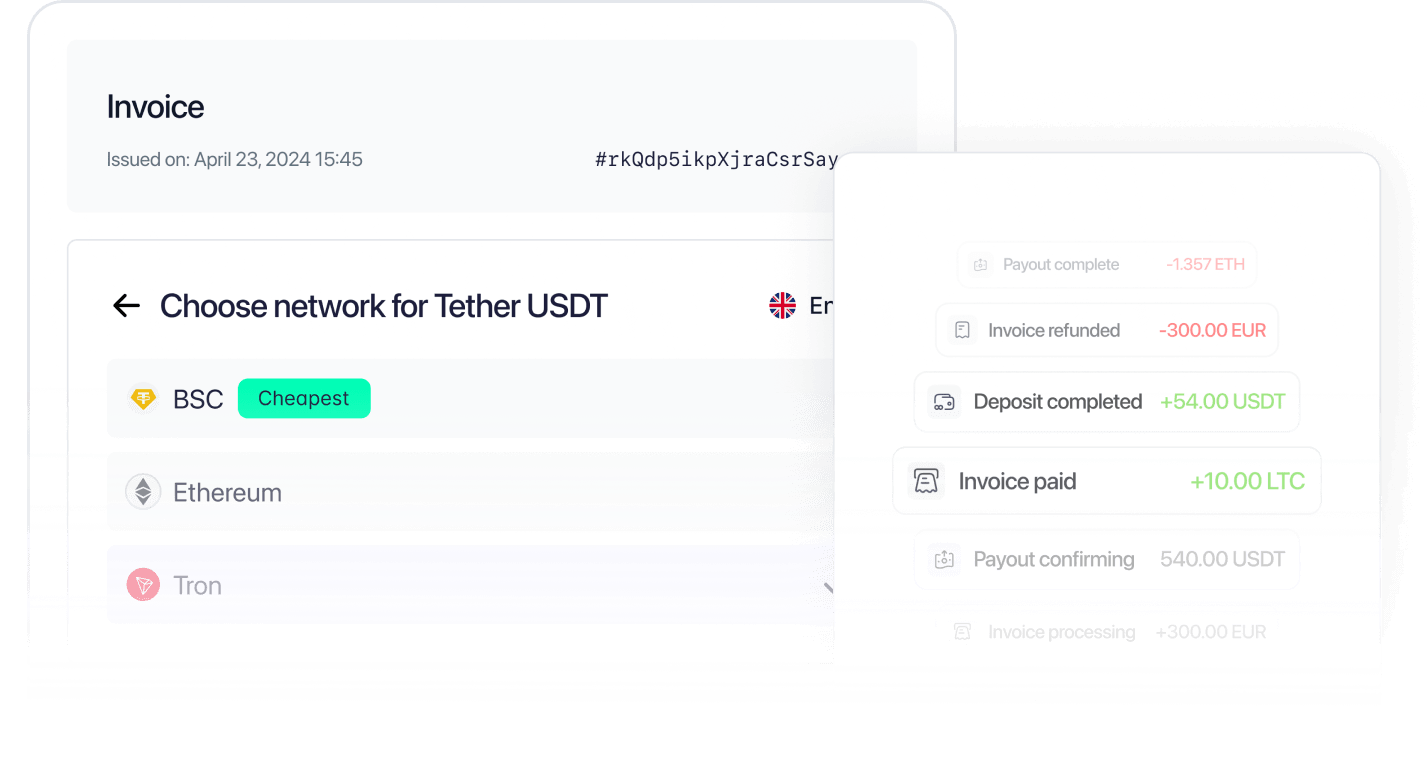
Once a payment request has been created, it can be shared with customers through a payment link or sent directly by email. Customers can open the payment page, select an available cryptocurrency and network, and complete the payment using the provided payment details. For detailed payment instructions, see the How to pay guide.
Payment request statuses
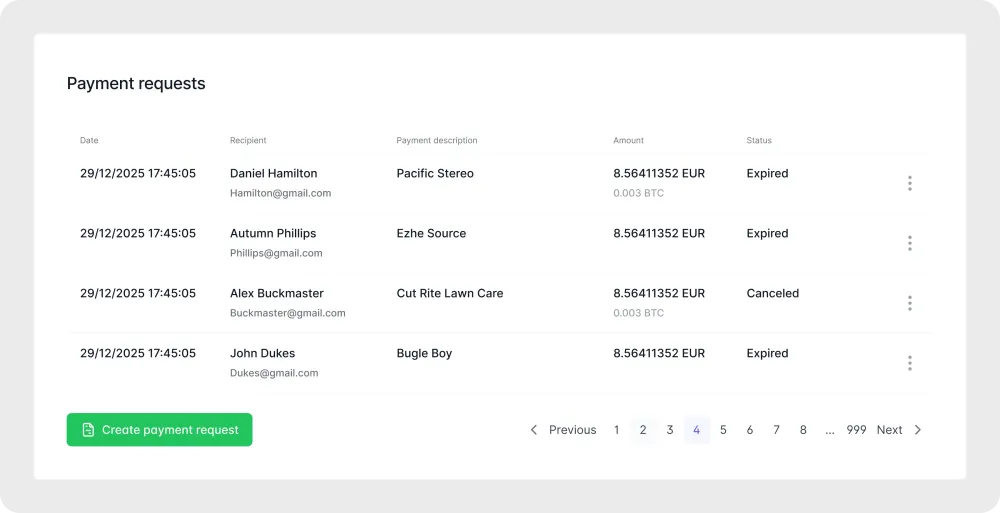
Payment request statuses are updated automatically as payments progress through different stages of the transaction lifecycle. Merchants can monitor these statuses directly from the Payment request page in the Sheepy dashboard.
Customers must complete payment within 15 minutes of opening the payment page. If payment is not received before the payment window expires, the payment request receives the Expired status. To continue, customers can click the payment button in the email or payment link to generate a new invoice with a fresh 15-minute window.
For a complete description of all available invoice statuses, refer to the Sheepy API documentation.
How to track payment requests
All created payment requests are displayed on the Payment request page in the Sheepy dashboard. The list provides an overview of recipient information, payment descriptions, invoice amounts, creation dates, and current payment statuses.
The Payment request page helps merchants organize and review payment activity from a single location. Available information can be used to verify invoice details, check payment progress, and identify requests that require attention.
Payment requests allow merchants to create, send, and manage crypto invoices directly from the Sheepy dashboard. With support for multiple cryptocurrencies, conversion settings, invoice customization, and payment tracking, payment requests provide a flexible way to accept cryptocurrency payments without API integration.

'%3e%3cpath%20d='M5.33337%2017.3333C5.76671%2020.7093%207.84137%2023.708%2010.6667%2025.3333'%20stroke='%231C1D3B'%20stroke-width='2'%20stroke-linecap='round'%20stroke-linejoin='round'/%3e%3cpath%20d='M26.6667%2014.6667C26.3406%2012.3203%2025.2521%2010.1462%2023.5688%208.47934C21.8856%206.81246%2019.701%205.74524%2017.3516%205.44209C15.0021%205.13893%2012.6182%205.61666%2010.5669%206.80168C8.51571%207.98669%206.911%209.81326%206%2012'%20stroke='%231C1D3B'%20stroke-width='2'%20stroke-linecap='round'%20stroke-linejoin='round'/%3e%3cpath%20d='M5.33337%206.66666V12H10.6667'%20stroke='%231C1D3B'%20stroke-width='2'%20stroke-linecap='round'%20stroke-linejoin='round'/%3e%3cpath%20d='M16%2020H18.6667C19.0203%2020%2019.3594%2020.1405%2019.6095%2020.3905C19.8595%2020.6406%2020%2020.9797%2020%2021.3333V22.6667C20%2023.0203%2019.8595%2023.3594%2019.6095%2023.6095C19.3594%2023.8595%2019.0203%2024%2018.6667%2024H17.3333C16.9797%2024%2016.6406%2024.1405%2016.3905%2024.3905C16.1405%2024.6406%2016%2024.9797%2016%2025.3333V26.6667C16%2027.0203%2016.1405%2027.3594%2016.3905%2027.6095C16.6406%2027.8595%2016.9797%2028%2017.3333%2028H20'%20stroke='%231C1D3B'%20stroke-width='2'%20stroke-linecap='round'%20stroke-linejoin='round'/%3e%3cpath%20d='M24%2020V22.6667C24%2023.0203%2024.1405%2023.3594%2024.3905%2023.6095C24.6406%2023.8595%2024.9797%2024%2025.3333%2024H26.6667'%20stroke='%231C1D3B'%20stroke-width='2'%20stroke-linecap='round'%20stroke-linejoin='round'/%3e%3cpath%20d='M28%2020V28'%20stroke='%231C1D3B'%20stroke-width='2'%20stroke-linecap='round'%20stroke-linejoin='round'/%3e%3c/g%3e%3cdefs%3e%3cclipPath%20id='clip0_17690_160'%3e%3crect%20width='32'%20height='32'%20fill='white'/%3e%3c/clipPath%3e%3c/defs%3e%3c/svg%3e)
'%3e%3cpath%20d='M10.6667%208.00001C10.6667%207.29277%2010.9477%206.61449%2011.4478%206.11439C11.9479%205.61429%2012.6262%205.33334%2013.3334%205.33334H24.0001C24.7073%205.33334%2025.3856%205.61429%2025.8857%206.11439C26.3858%206.61449%2026.6667%207.29277%2026.6667%208.00001V18.6667C26.6667%2019.3739%2026.3858%2020.0522%2025.8857%2020.5523C25.3856%2021.0524%2024.7073%2021.3333%2024.0001%2021.3333H13.3334C12.6262%2021.3333%2011.9479%2021.0524%2011.4478%2020.5523C10.9477%2020.0522%2010.6667%2019.3739%2010.6667%2018.6667V8.00001Z'%20stroke='%231C1D3B'%20stroke-width='2'%20stroke-linecap='round'%20stroke-linejoin='round'/%3e%3cpath%20d='M5.33337%2013.3333C5.33337%2012.6261%205.61433%2011.9478%206.11442%2011.4477C6.61452%2010.9476%207.2928%2010.6667%208.00004%2010.6667H18.6667C19.374%2010.6667%2020.0522%2010.9476%2020.5523%2011.4477C21.0524%2011.9478%2021.3334%2012.6261%2021.3334%2013.3333V24C21.3334%2024.7072%2021.0524%2025.3855%2020.5523%2025.8856C20.0522%2026.3857%2019.374%2026.6667%2018.6667%2026.6667H8.00004C7.2928%2026.6667%206.61452%2026.3857%206.11442%2025.8856C5.61433%2025.3855%205.33337%2024.7072%205.33337%2024V13.3333Z'%20stroke='%231C1D3B'%20stroke-width='2'%20stroke-linecap='round'%20stroke-linejoin='round'/%3e%3c/g%3e%3cdefs%3e%3cclipPath%20id='clip0_17690_177'%3e%3crect%20width='32'%20height='32'%20fill='white'/%3e%3c/clipPath%3e%3c/defs%3e%3c/svg%3e)